


Summarize Blog
Quick Summary
Plan your Jenkins Jira integration before setup. Learn how to choose plugins, map Jira issues, configure secure access, validate automated test results, and avoid common mistakes during integration.
A Jenkins build can pass, and automated tests can finish running, but QA teams may still struggle to connect those results to the right Jira issues, test cases, and execution records. This is where Jenkins Jira integration becomes important. It helps teams connect development workflows with project tracking and, depending on the integration, automated test reporting.
However, not every integration serves the same purpose. Some integrations focus on build status and deployment tracking, while others help teams publish test results and maintain traceability within Jira. Choosing the wrong approach can leave gaps in reporting even when the pipeline runs successfully.
Before connecting the tools, teams should define what data needs to move between them, check plugin compatibility and permissions, and decide how to handle failed tests or missing results. This guide covers the key decisions to make before implementation.
What Does Jenkins Jira Integration Actually Do?
Jenkins Jira integration connects software development and testing workflows with project tracking in Jira. Depending on the plugin and configuration, it can link Jenkins builds to Jira issues, provide deployment visibility, or send automated test results to a Jira test management tool.
The right setup depends on what your team needs to track.
Build and Deployment Tracking
Teams can use an integration to associate Jenkins builds with Jira issues and view relevant build or deployment information. This helps developers and release managers understand how development work moves through a CI/CD pipeline.
For example, a team can link a build to the Jira issue associated with a code change and review deployment activity alongside that work.
Automated Test Reporting
Automated test reporting serves a different purpose. It helps QA teams send test execution results from Jenkins to Jira, connect results with test cases, and review failures in the context of their testing workflow.
Before choosing a Jenkins Jira integration, decide whether you need build integration, deployment tracking, automated test reporting, or a combination of these. That decision will guide your plugin selection and configuration.
What to Plan Before Starting a Jenkins Jira Integration
Before setting up the connection, define what the integration needs to do, what data should move between the tools, and how the team will verify the results.
Planning these details early helps avoid reporting gaps and configuration issues later.
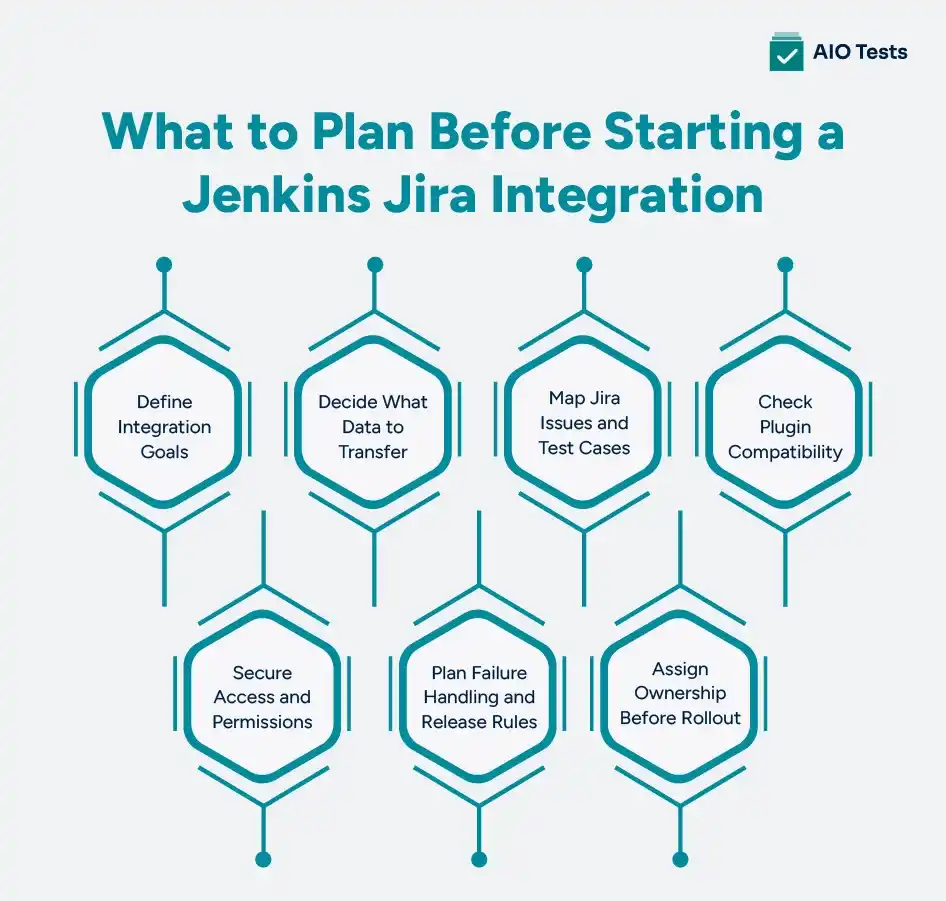
1. Define What You Need the Integration to Achieve
Start by identifying the main reason for connecting Jenkins and Jira. Your requirements will determine which integration method and configuration you need.
Common goals include:
- Build visibility: Link Jenkins builds to Jira issues and review their status.
- Deployment tracking: Connect deployment activity with development work and release progress.
- Automated test reporting: Send test execution results from Jenkins to Jira.
- Test traceability: Connect requirements, test cases, execution results, and defects.
Some teams need only build and deployment visibility, while others need a test management workflow that records individual test results. Define the expected outcome before selecting a Jenkins integration with Jira.
2. Decide Which Data Should Move Between Jenkins and Jira
Next, identify the information the integration needs to transfer. Connecting the tools does not automatically mean every build, test result, or deployment will appear in the right Jira record.
For example, a team may need to associate deployment events with Jira issues while sending individual test results to its test management tool. These are related requirements, but they may need different configurations.
Define what should be transferred, where it should appear, and how the team will verify it. This gives the integration a clear scope.
3. Plan Jira Issue and Test-Case Mapping
A Jenkins pipeline can execute hundreds of tests, but the results are less useful if the team cannot identify the relevant Jira issues or test cases.
Before implementation, decide how the mapping will work.
- Standardize Jira issue keys: Establish conventions for including issue keys in branches, commit messages, or other supported integration points.
- Identify automated test cases: Use a consistent method to match test results with existing test cases.
- Define result-handling rules: Decide how passed, failed, and skipped tests should be recorded.
- Plan for missing mappings: Determine what happens when a result has no matching issue or test case.
Consider a pipeline that runs 120 regression tests. The QA team needs to identify which tests passed, which failed, and which requirements they cover. A single failed-build status does not provide that level of detail.
Agreeing on mapping rules before connecting the tools helps teams avoid incomplete test records and makes results easier to investigate.
4. Check Plugin Compatibility and Integration Requirements
Not every Jenkins Jira plugin supports the same workflows or Jira environments. Check compatibility before committing to a particular setup.
Confirm the following:
- Jira environment: Is the team using Jira Cloud or Jira Data Center?
- Jenkins version: Is the plugin compatible with the installed Jenkins version?
- Required applications: Does the workflow require a Jira app or test management tool?
- Report formats: Can the integration process the team's existing test reports, such as JUnit, TestNG, or Cucumber?
- Required functionality: Does the plugin support the intended build, deployment, or test-reporting workflow?
Review the relevant product documentation and, when possible, test the proposed configuration in a non-production environment. This helps identify compatibility gaps before they affect an active CI/CD pipeline.
5. Plan Authentication, Permissions, and Secret Management
The integration also needs secure access to the relevant systems. Poorly managed credentials and excessive permissions can create avoidable security risks.
Before setup:
- Identify who has permission to install Jenkins plugins and Jira applications.
- Confirm which accounts, tokens, or credentials the integration requires.
- Store secrets in an approved credential manager rather than directly in pipeline code.
- Grant only the permissions needed for the integration.
- Assign responsibility for credential rotation and access-related failures.
Check these requirements against the selected plugin's documentation. Authentication methods and permissions can differ between integrations and Jira environments.
6. Define Failure Handling and Release Criteria
Plan what should happen when Jenkins runs a build but the expected information does not reach Jira.
Consider these scenarios:
- A test report is missing, incorrectly formatted, or incomplete.
- Authentication fails and results cannot be published.
- A test result cannot be matched to an existing test case.
- A test fails even though the pipeline continues to run.
- A reporting error occurs after the tests have finished.
A failed test, a failed build, and a failed result upload are three different events. Define whether each should stop the pipeline, trigger a notification, create a defect, or require manual review.
Also decide which test failures should block a release. These rules help teams distinguish genuine quality risks from integration or reporting problems.
7. Assign Ownership Before Rollout
Finally, decide who will manage the integration after implementation. Clear ownership helps teams resolve problems without delays.
- DevOps team: Maintains Jenkins pipeline configuration and credentials.
- QA team: Validates test mapping, reports, and execution records.
- Jira administrator: Manages applications, permissions, and project access.
- Development or release team: Maintains issue-key conventions and release criteria.
Assign one owner to coordinate changes, monitor integration errors, and review the workflow when Jenkins, Jira, or the test framework changes.
How to Validate the Integration Before Rolling It Out
Before rolling out a Jenkins Jira integration across your projects, test it with one pipeline and a limited set of test cases. A successful connection does not guarantee that builds, deployments, and test results will reach the correct Jira records.
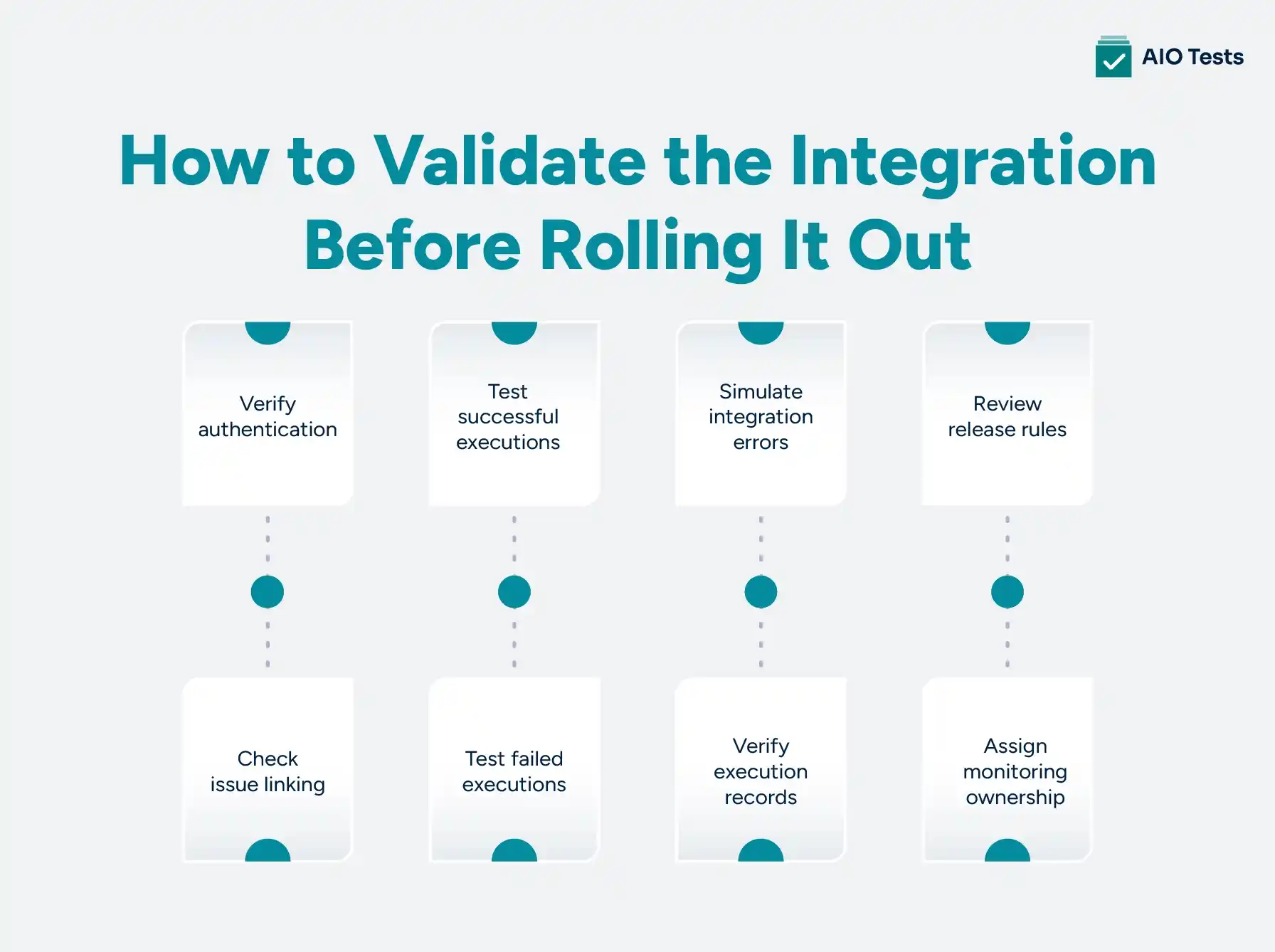
Use this checklist during the pilot:
- Verify authentication: Confirm that Jenkins can connect to the intended Jira instance using the configured credentials.
- Check issue linking: Run a build and verify that its information appears against the correct Jira issue.
- Test successful executions: Run an automated test suite and confirm that the results appear in the expected test records.
- Test failed executions: Include tests with known failures and verify that their statuses are reported correctly.
- Simulate integration errors: Check how the workflow handles invalid credentials, missing reports, and unmatched test cases.
- Verify execution records: Confirm that results update the intended test cycle or create the expected record.
- Review release rules: Ensure that test failures and reporting errors trigger the intended actions.
- Assign monitoring ownership: Identify who will investigate errors after the integration goes live.
Test both normal runs and failure scenarios before expanding the setup. For example, a green Jenkins build does not prove that every test result has been published successfully to Jira.
Document the pilot results, fix any mapping or reporting issues, and repeat the checks before rolling out the integration to additional pipelines. This gives QA and DevOps teams a clearer basis for deciding whether the setup is ready for wider use.
How AIO Tests Fits Into Jenkins Jira Integration
Jenkins runs automated tests as part of a CI/CD pipeline, but teams also need a way to manage test cases, record execution results, and track defects in Jira. AIO Tests is a Jira native test management tool that helps teams manage these testing activities and report automated test results from Jenkins.
The tool’s Jenkins plugin supports importing automated test results from frameworks such as JUnit, TestNG, Cucumber, and NUnit, provided the reports meet the plugin’s format requirements.
Teams can configure how results are published to AIO Tests, including whether the results should update an existing test cycle or create a new one. The exact setup depends on the team's reporting workflow and plugin configuration.
The platform also provides test traceability and reporting features that connect requirements, test cases, execution results, and defects. This helps QA teams review test coverage and investigate failures within Jira instead of relying only on Jenkins build status.
When Should You Consider AIO Tests?
Consider AIO Tests when your team needs more than build or deployment visibility. It is relevant if you want to manage test cases and execution cycles in Jira while reporting automated test results from Jenkins.
Before implementation, check the Jenkins plugin documentation for supported report formats and compatibility requirements. Also verify test-case mapping, cycle settings, and credential configuration.
Explore AIO Tests automation testing capabilities to see how the platform supports your team's test management workflow.

Common Jenkins Jira Integration Mistakes to Avoid
Even when the tools connect successfully, poor planning can leave teams with incomplete records, unreliable reports, or unnecessary manual work. Watch for these common mistakes when setting up a Jenkins Jira integration.
- Choosing a plugin too early: Selecting a tool before defining the use case can leave teams with build visibility but no automated test reporting. Identify the required outcomes first.
- Ignoring Jira issue keys: Inconsistent issue-key conventions can prevent builds or deployments from linking to the correct Jira issues. Establish clear conventions before rollout.
- Assuming test results create traceability automatically: Test results must be mapped to the relevant test cases and requirements. Define mapping rules and verify them with real test runs.
- Testing only successful builds: A successful run does not reveal how the integration handles missing reports, failed tests, or authentication errors. Test failure scenarios, too.
- Exposing credentials in pipeline code: Hard-coded tokens can create security risks. Store credentials securely and restrict access.
- Leaving ownership undefined: Without a responsible owner, configuration problems and reporting failures may go unresolved. Assign clear maintenance responsibilities.
- Treating every failure as a release blocker: A failed test, failed build, and failed result upload have different implications. Define separate handling rules for each.
When you integrate Jenkins with Jira, the goal is not simply to establish a connection. It is to make sure the right information reaches the right records and supports the team's testing and release decisions.
Conclusion
A successful Jenkins Jira integration starts with clear requirements, not simply with plugin installation. Decide whether your team needs build and deployment tracking, automated test reporting, or both. Then define data mapping, access permissions, failure handling, and release criteria before connecting the tools.
Test the setup with a pilot pipeline that includes successful builds, failed tests, and reporting errors. This helps identify gaps before the integration reaches more projects. If your QA team also needs test-case management, execution tracking, and traceability within Jira, evaluate whether AIO Tests fits your workflow.

FAQs
1. Can Jenkins integrate with Jira?
Yes, Jenkins can integrate with Jira through plugins and other integration methods. The right option depends on what you need to connect. Some integrations provide build and deployment visibility, while others send automated test results to Jira test management tools. Check plugin compatibility and supported features before choosing a solution.
2 How do I connect Jenkins to Jira Cloud?
To connect Jenkins to Jira Cloud, identify an integration that matches your requirements, install the required plugin or app, configure authentication, and define the information you want to share. Then run a test build to verify the connection.
3. What is the Jenkins plugin for Jira?
A Jenkins plugin for Jira connects Jenkins workflows with Jira, but available features vary by plugin. Atlassian's Jenkins integration supports development activity and build or deployment visibility. The AIO Tests Jenkins plugin focuses on reporting automated test results into AIO Tests within Jira. Choose based on your required workflow.
4. How do I send Jenkins test results to Jira?
Generate test reports in a format supported by your chosen integration, configure the plugin and authentication, and map the results to the appropriate test cases or execution cycles. Run a test suite and verify that the results appear correctly in Jira. A test management integration such as AIO Tests can help teams manage this workflow.
5. Can Jenkins automatically create Jira issues for failed builds?
Yes, Jenkins can be configured to create Jira issues when builds fail, provided the selected plugin or automation workflow supports it. You must define the failure conditions, issue fields, and assignment rules. Consider adding duplicate detection so repeated failures do not create unnecessary issues for the same underlying problem.
6. Does Jenkins integration work with Jira Data Center?
Yes, some Jenkins integrations support Jira Data Center, but compatibility depends on the plugin and its version. Check the vendor's documentation for supported Jira editions, Jenkins versions, and features before installation. Do not assume that a plugin designed for Jira Cloud will also work with Data Center.


.svg)
