

.webp)
Summarize Blog
Quick Summary
Learn how workflow management in AIO Tests transforms your Jira QA process, automating repetitive actions, enforcing lifecycle rules, and delivering real-time notifications, so your team ships faster with fewer errors.
30–40% of every sprint is gone. Not for testing. Not to quality improvements. But to manual workflow management that should have been automated yesterday. If your QA team is still chasing approvals, hand-sending notifications, and enforcing process rules the hard way, you're leaving serious sprint velocity on the table.
The problem is not your team. It's the absence of a structured, automated workflow layer inside your test lifecycle. Without it, anyone can skip a step, break a process, or bypass a review, and the first time you find out is when it's already too late.
AIO Tests' Workflow Manager fixes this at the root. Automated actions, restricted permissions, and real-time lifecycle notifications all run inside Jira, all without manual intervention, strengthening your overall software quality assurance process.
Let's break it down step by step.
What Is Test Case Lifecycle Management in Jira?
In an Agile environment, every test case in Jira follows a defined journey created from a Jira requirement, reviewed and approved by a QA lead, linked to an active sprint, executed by a tester, and finally closed once defects are logged and resolved.
This end-to-end journey is what test case lifecycle management means in practice. When it runs smoothly, your team ships with confidence. When it doesn't, defects escape, sprints slip, and release quality becomes unpredictable.
- The problem is that most Jira QA teams lack a structured process to enforce this lifecycle.
- Without guardrails, test cases are updated by the wrong person, execution cycles are closed prematurely, required review steps are skipped entirely, and nobody receives a notification until the damage is already done.
- There's no audit trail, no accountability, and no automated enforcement, just a process that depends entirely on people doing the right thing every single time.
AIO Tests Workflow Manager: Intelligent QA Workflow Management Software
AIO Tests is a QA testing and test management app for Jira. Its Workflow Manager is an advanced automation capability that helps teams define and enforce rule-based workflows directly within their Jira environment.
It allows QA teams to configure workflows that run automatically in response to specific triggers tied to actions on test entities such as Cases, Cycles, and Batches. These workflows can be executed either before an action takes place (pre-event) or after it occurs (post-event), giving teams control over how and when rules are applied.
At its core, Workflow Manager operates on three key capabilities:
- Restrict — control actions by defining rules that can prevent certain operations based on conditions. This helps avoid invalid updates or unintended changes within the test process.
- Notify — display messages or alerts when defined workflow conditions are met, ensuring that users are informed about important changes or required actions at the right time.
- Automate — trigger predefined actions based on specific events and conditions, reducing manual intervention and helping teams maintain consistency in their workflows.
Workflows can be configured using a combination of triggers, conditions, and actions. Teams can define when a workflow should run, specify conditions such as field changes or state transitions, and determine the outcome when those conditions are met.
For QA teams, this introduces a structured way to manage test activities without relying on manual follow-ups or external tracking. Instead of enforcing processes through documentation or oversight, teams can embed rules directly into their testing workflow, ensuring that key actions follow a defined path.
The result is a more controlled and predictable QA process where workflows are consistently applied, and teams can focus on execution rather than managing process gaps.
How The Workflow Manager Works Inside AIO Tests?
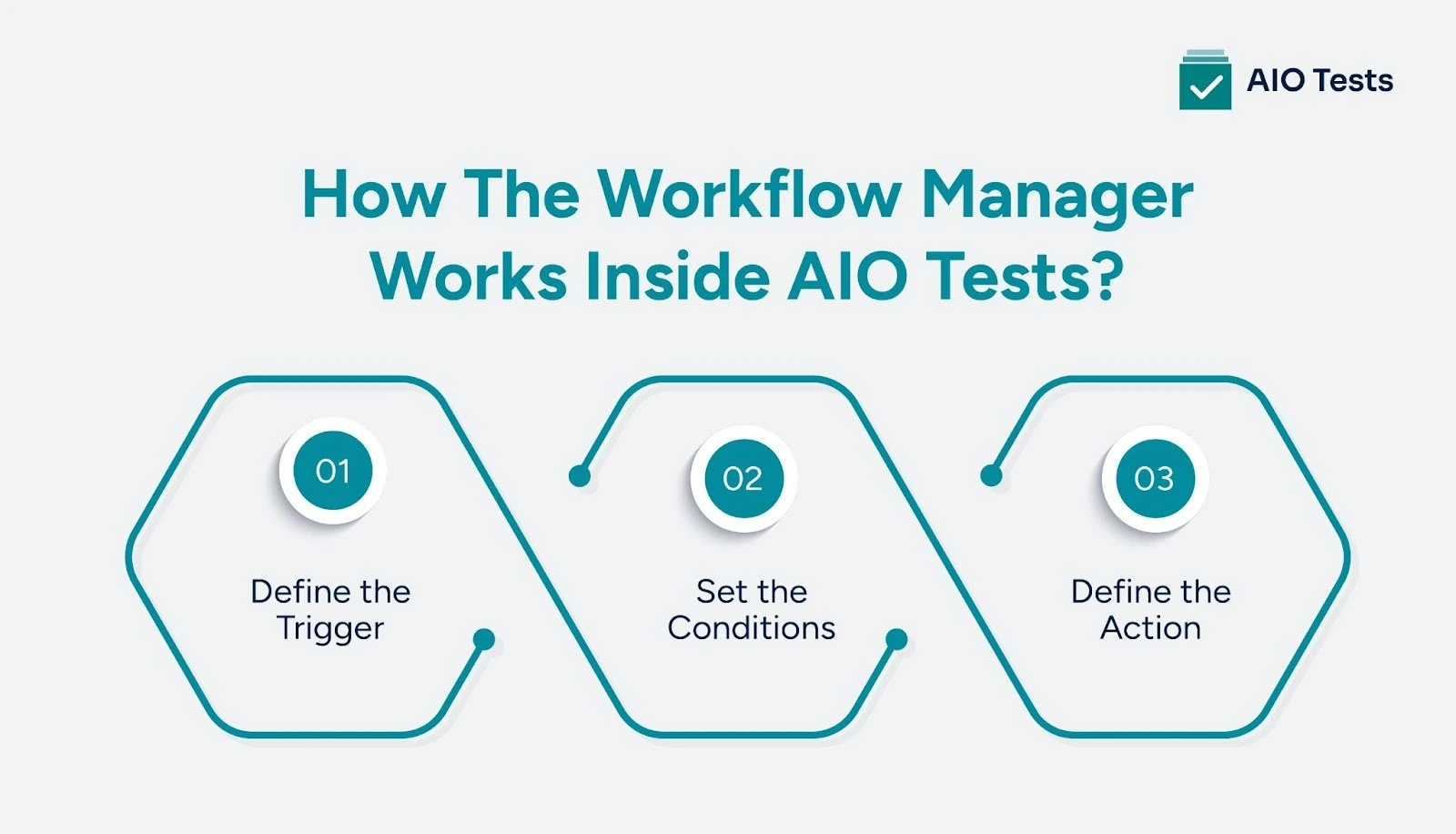
The Workflow Manager is built around a simple but powerful 3-part logic: Trigger → Condition → Action. Here's what each component does.
1. Define the Trigger
Every workflow starts with a trigger — the event that tells AIO Tests to pay attention. The Workflow Manager gives you two types of hook timing to choose from:
- Pre-Event — fires before the action is executed, giving you the ability to restrict or validate before any change takes effect
- Post-Event — fires after the action is completed, ideal for sending notifications or triggering automated follow-up steps
Triggers can be applied across three core entities inside AIO Tests:
- Cases — individual test cases and their lifecycle events
- Cycles — test execution cycles and their progress milestones
- Batches — grouped sets of cases processed together
For each entity, you can define triggers on the following events:
- Creation — when a new Case, Cycle, or Batch is created
- Deletion — when an entity is permanently removed
- Update — when any field or property is modified
- Archiving — when an entity is moved to an archived state
- Property Change — the most precise trigger type, allowing you to select a specific field and watch for an exact change in its value
The Property Change trigger is particularly powerful. You select the exact field you want to monitor — for example, the Status field — and then define both the Existing Entity state (the value it currently holds) and the New Entity state (the value it's changing to). This means your workflow fires only when a test case moves from "In Review" to "Approved" — not on every status update.
2. Set the Conditions
Conditions give your workflows surgical precision. Once a trigger fires, AIO Tests checks whether the defined conditions are met before executing any action. You choose between two condition modes:
- All Conditions Match — every condition in the set must be true for the workflow to proceed
- Any Condition Match — the workflow proceeds if at least one condition in the set is true
Conditions are built at the field level. For each condition, you select the field, choose a comparison operator, and set the target value. This lets you create highly specific workflow rules — for example, trigger only if a Case status changes from "In Review" to "Approved," and the Priority field is set to "High."
Conditions are optional. For simple, broad workflows, you can skip them entirely and let the trigger alone drive the action. But for teams managing complex QA processes across multiple projects, conditions are what make the difference between a workflow that runs everywhere and one that runs exactly where it should.
3. Define the Action
The Action is what AIO Tests actually does when the trigger fires and conditions are met. This is where your workflow delivers its value — automatically, without anyone needing to intervene. Actions inside the Workflow Manager fall into three categories:
- Restrict — block an unauthorized or incorrect action from completing, preventing process violations before they happen
- Notify — send an automatic, real-time alert to the right team member or stakeholder the moment the trigger condition is met.
- Automate — execute a follow-up action immediately — updating a field, changing a status, or triggering a downstream process — without any manual intervention.
Once your workflow is fully configured — trigger, conditions, and action — it's saved to your project's workflow library. From there, each workflow can be enabled or disabled instantly with a simple toggle, giving QA leads full control over which rules are active at any point in the sprint without needing to delete or rebuild workflows.
How To Set Up Your First Workflow In AIO Tests?
Creating your first workflow takes less than 5 minutes. Here's the exact process.
Step 1: Click the Gear icon in your AIO Tests project and select Project Settings.

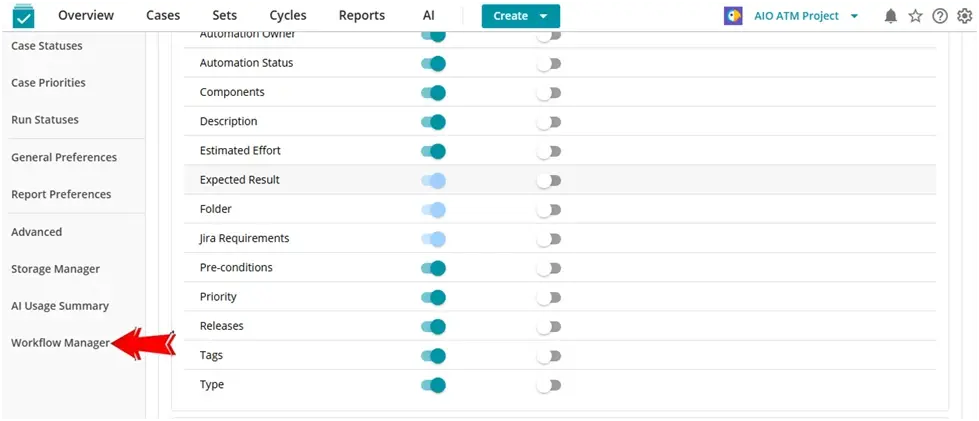
Step 2: Click on the Workflow Manager option in the sidebar menu.
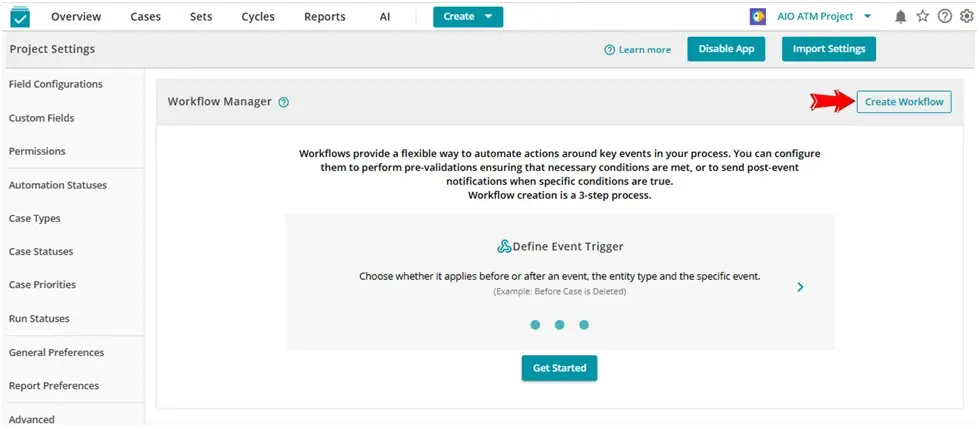
Step 3: Click Create Workflow to open the workflow builder.
Step 4: Define your Trigger:-
- Name: Enter the name of the workflow
- Hook: Select when the workflow will run.
- Pre-Event: The hook will be executed before the activity takes place.
- Post-Event: The hook will be executed after the activity takes place.
- Entity: Select the object on which the rules will be applied.
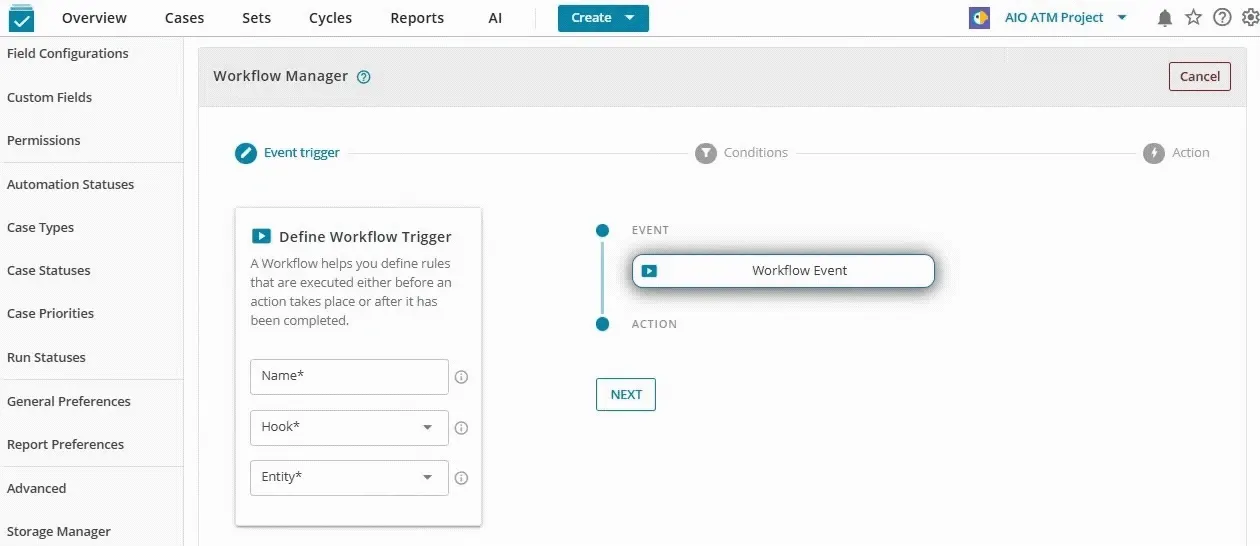
Step 5: Click Next to proceed to the Conditions step.
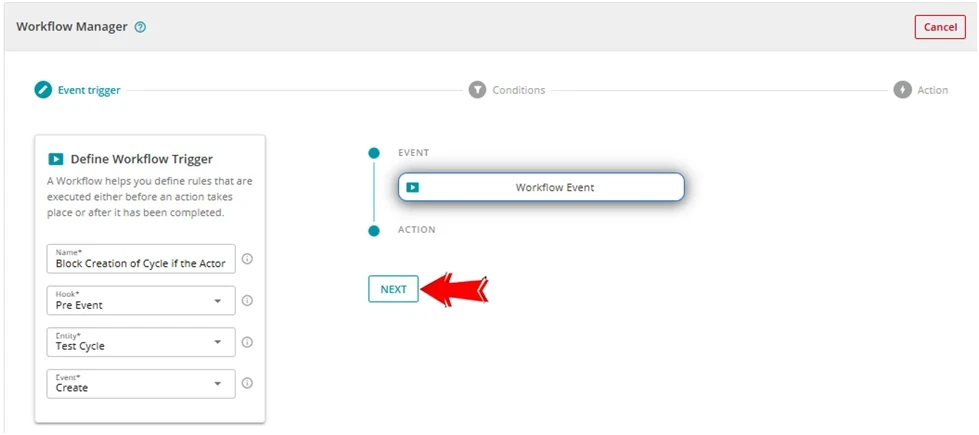
Step 6: Click Add Condition — this step is optional but recommended for precision targeting.
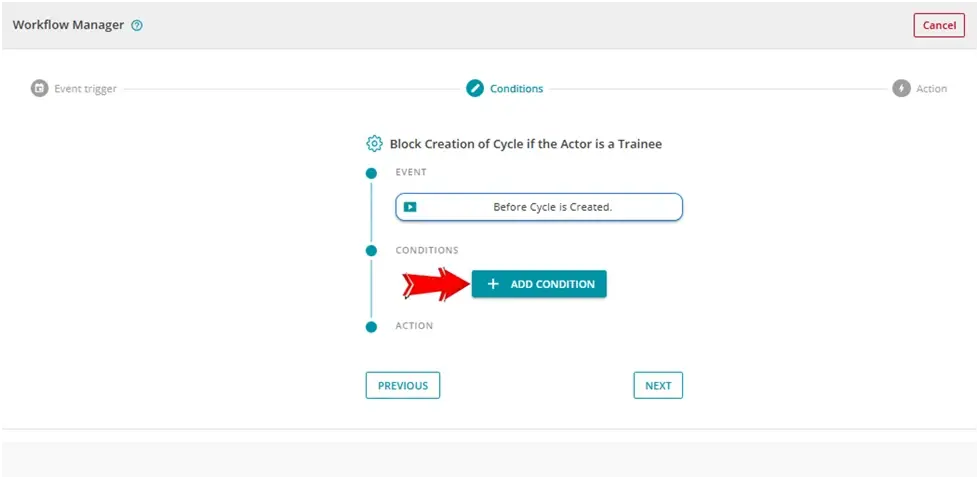
Once you click on the Add Condition button, the New State Operator and Add New State Condition modal windows will appear.
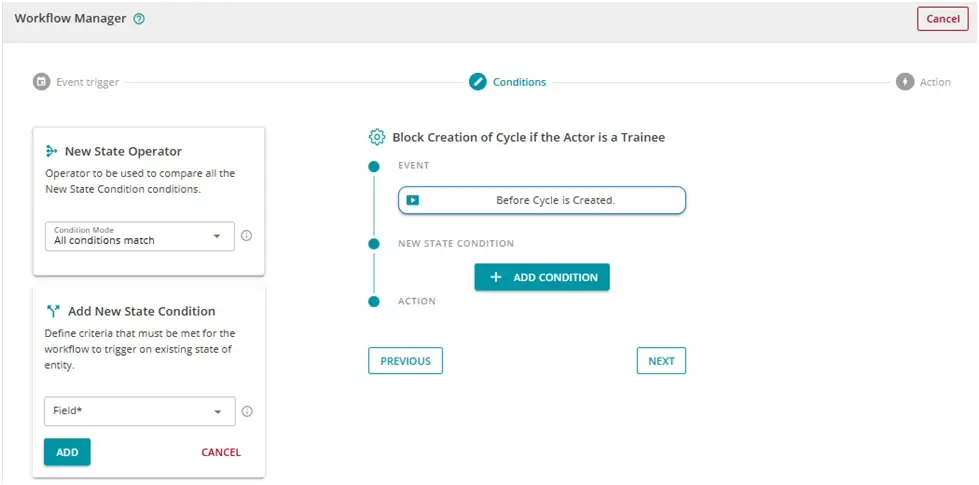
Step 7: In the New State Operator section, select the desired Condition Mode.
- All Conditions Match: All conditions have to occur for the workflow to trigger
- Any Condition Match: Any of the set conditions has to occur for the workflow to trigger.
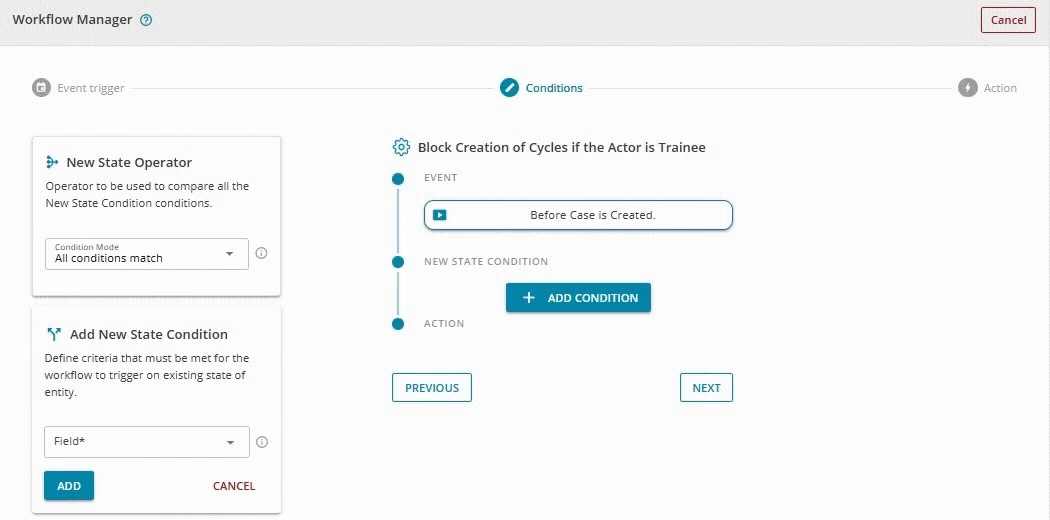
Step 8: In the Add New State Condition, enter the following details:
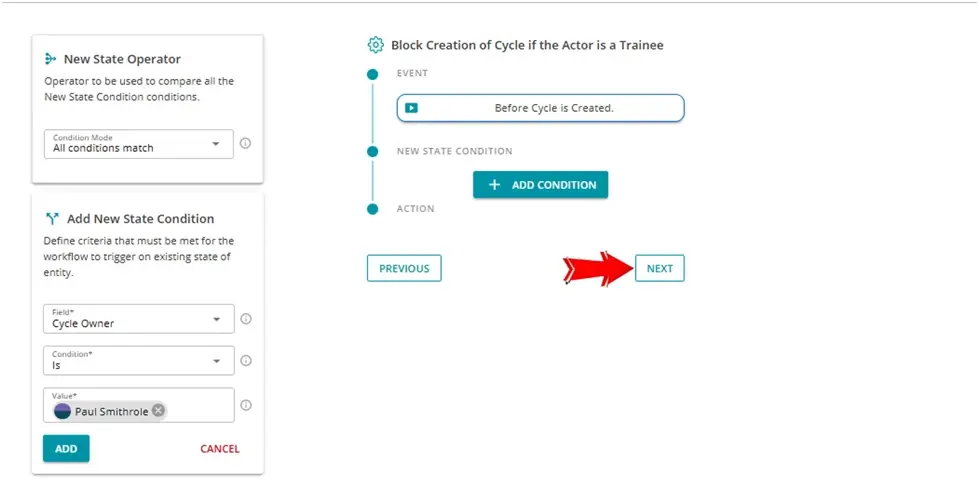
- Field: Select the field on which the condition should be evaluated.
- Condition: Choose how to compare the field value.
- Value: Select one or more values to compare the field value to.
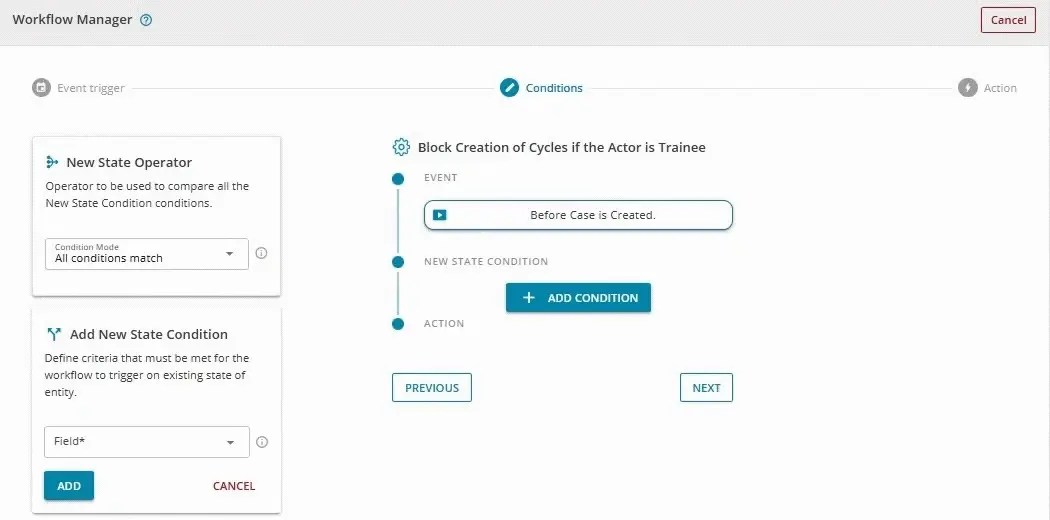
Step 9: Click Add to save the condition, then click Next to proceed to the Action step.

Step 10: Define your Action — set the message, restriction, notification, or automated response that fires when the workflow is triggered.
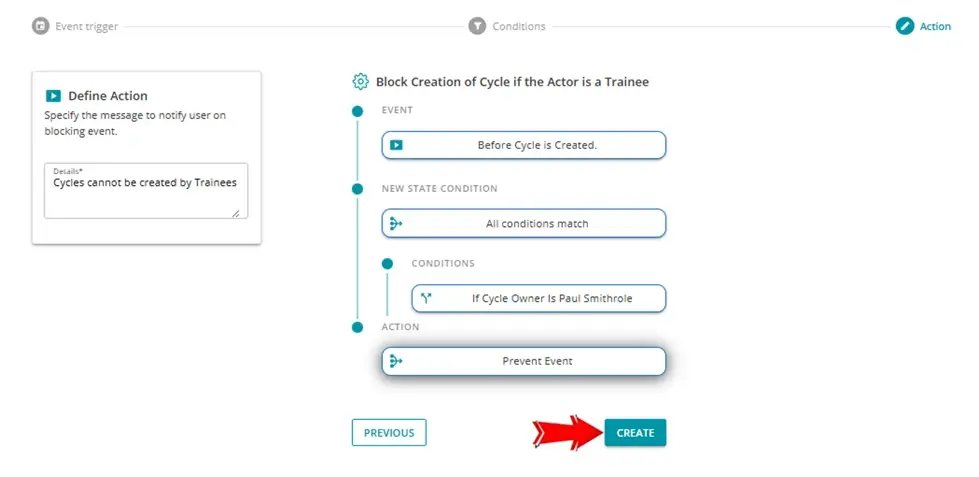
Step 11: In the Define Action section, enter the message that’ll be displayed when the workflow is triggered.
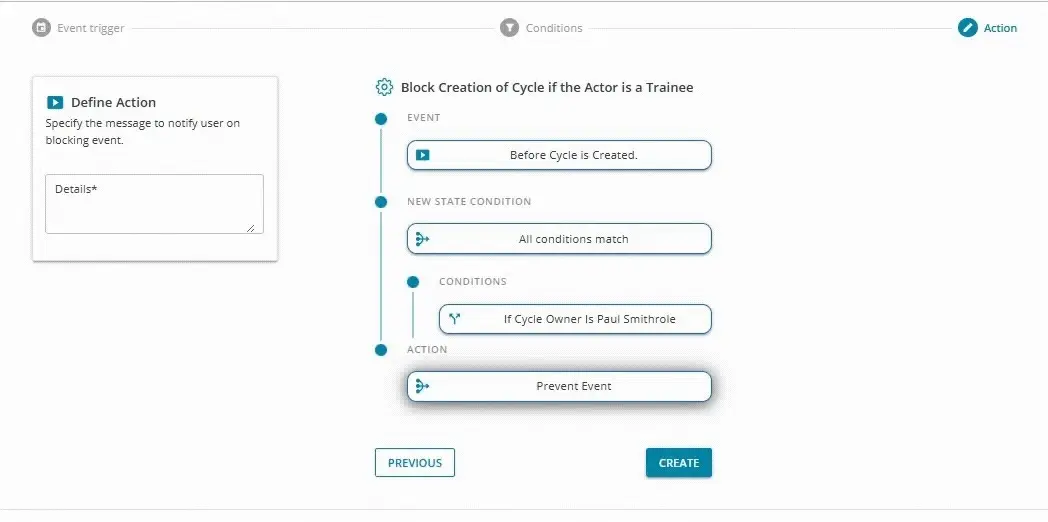
Step 12: Finally, click on the Create button.
Conclusion
AIO Tests' Workflow Manager eliminates that entirely by putting automated, rule-based governance at every stage of your test case lifecycle. The result is a QA process that enforces itself consistently and accurately, without manual intervention.
If your team is still relying on manual reminders and an honor-system approach to ensure process compliance in your test lifecycle, it's time to automate. The workflows are ready. The rules are yours to define. All that's left is setting them up.
Book a demo for AIO Tests today and bring more clarity to Your Workflow management.

Frequently Asked Questions
1. What is workflow management in the context of QA testing?
Workflow management in QA testing refers to defining and enforcing rules around how test entities like cases, cycles, and batches are handled during different stages of testing. Instead of relying on manual process enforcement, teams can use rule-based workflows to control actions, apply restrictions, and respond to specific events.
2. How does AIO Tests' Workflow Manager improve the test case lifecycle in Jira?
AIO Tests' Workflow Manager introduces rule-based automation within Jira, allowing teams to control how actions are performed across cases, cycles, and batches. It helps enforce process consistency by restricting certain actions, displaying messages when conditions are met, and applying workflows at key stages of the testing process.
3. What's the difference between Pre-Event and Post-Event hooks in AIO Tests?
A Pre-Event hook runs before an action is executed, allowing teams to validate or restrict changes before they are applied. A Post-Event hook runs after an action is completed, enabling workflows to respond to completed events.
4. Can I use the Workflow Manager to restrict specific users from modifying test cases?
Yes, Workflow Manager allows you to define rules that can restrict certain users from performing specific actions, such as updates, deletions, or status changes on Cases, Cycles, or Batches, based on the configured workflow conditions.
5. What entities and events does AIO Tests' Workflow Manager support?
Workflow Manager supports three primary entities: Cases, Cycles, and Batches. Workflows can be triggered using events such as Creation, Deletion, Update, Archiving, and Property Change, allowing teams to apply rules across different testing activities.
6. Is AIO Tests' Workflow Manager available for both Jira Cloud and Jira Data Center?
AIO Tests is available for both Jira Cloud and Jira Data Center. Workflow Manager functionality is supported within the platform, though specific capabilities may vary depending on the deployment environment.


.svg)

