


Summarize Blog
Quick Summary
Jira cloud migration can help organizations improve scalability, reduce maintenance efforts, and create a more flexible Jira environment. This guide covers the key migration steps, common challenges, preparation strategies, tools, and best practices to help teams move data safely while keeping workflows, integrations, and critical information intact.
Cloud adoption is becoming increasingly important for businesses as they look to improve efficiency and reduce infrastructure costs.
For organizations using Jira, Jira migration from Server or Data Center to Jira Cloud has become a necessary step to improve workflows and gain access to new features. Jira Cloud migration offers several benefits, such as better flexibility, lower IT costs, and easier integration with other cloud services.
In this blog, we will explain what Jira Cloud migration is, the key benefits, challenges, and considerations involved in migrating to Jira Cloud.
What is Jira Cloud Migration?
Jira Cloud migration involves moving your organization's Jira data, configurations, projects, and workflows from Jira Server or Jira Data Center to Jira Cloud. Organizations looking to migrate Jira on premise to cloud usually review data, configurations, and app compatibility first.
A CIO report reveals that by 2025, 80% of enterprises intend to retire their traditional data centers and fully transition to the cloud.
This transition allows businesses to take full advantage of the cloud environment, which offers increased flexibility, lower infrastructure costs, and automatic updates.
Following the right Jira migration steps helps teams move data safely and reduce disruption:
- Planning: Assess your current Jira environment to understand the data, configurations, and workflows that need to be migrated.
- Data Preparation: Clean and consolidate your data to ensure that only the relevant information is transferred to Jira Cloud.
- Execution: Use tools like the Jira Cloud Migration Assistant to facilitate the migration and transfer data efficiently.
- Testing and Validation: Run test migrations and perform extensive validation to ensure that the data and workflows are correctly transferred and function as expected in Jira Cloud.
What Are the Benefits of Jira Cloud Migration?
Migrating to Jira Cloud provides a wealth of benefits that significantly enhance the efficiency, flexibility, and scalability of organizations.
Below are the key advantages that businesses can expect when making the transition from Jira Server or Data Center to Jira Cloud:
1. Enhanced Scalability
- Jira Cloud automatically scales with your organization’s needs.
- As your business grows, Jira Cloud allows you to add users, projects, and teams without additional infrastructure investment.
- Unlike Jira Server or Data Center, there is no need to manually upgrade or maintain servers to accommodate increased usage.
- Provides flexibility to scale without causing performance issues, ensuring smooth operations as your organization changes.
2. Significant Cost Savings
- No upfront costs for hardware or server infrastructure, reducing capital expenditure.
- Transition to a subscription-based model, which offers predictable and manageable operational costs.
- Lower IT overhead, as there is no need to maintain physical infrastructure or worry about server management.
- Automatic updates and patch management by Atlassian mean fewer resources spent on system maintenance.
3. Automatic Updates and Maintenance
- Jira Cloud is automatically updated with the latest features, security patches, and bug fixes by Atlassian.
- No manual intervention is required for updates or system upgrades, which minimizes downtime.
- Always up-to-date with the latest QA testing tools, improving security and functionality without manual effort from your IT team.
- Reduces the burden on IT staff to handle system maintenance, freeing up resources for other important tasks.
4. Integration with Cloud-Native Services
- Jira Cloud integrates effortlessly with cloud-native services.
- These integrations streamline collaboration and project management across different platforms, making it easier for teams to work together.
- Seamless workflows across tools enable enhanced productivity and fewer silos in operations.
- Integration with popular cloud services improves the user experience and connects teams without having to switch between multiple tools.
5. Improved Flexibility and Remote Accessibility
- Access Jira Cloud from anywhere, whether your teams are working from the office, home, or on the go.
- No dependency on physical infrastructure, ensuring remote accessibility for team members in different locations and time zones.
- Offers flexibility to adjust to the growing demands of remote work environments.
- Teams can collaborate in real time, improving communication and project tracking across geographies.
.webp)
Comparison Table: Jira Server/Data Center vs. Jira Cloud
A Server to Cloud migration Jira approach requires reviewing differences between both environments.
Are There Any Drawbacks to Consider?
While Jira Cloud meets the needs of most businesses, there are a few points to keep in mind. Some companies, particularly those with strict security requirements or a need for full control over their systems, may need to weigh a few important considerations.
- Less Control Over Data Security: Since your data is stored on Atlassian’s servers, you may not be able to apply customized security settings or manage storage the way you could with an in-house setup. This might be a concern for teams working in regulated industries or with sensitive information.
- Limited Access to Server Settings: You won’t have access to backend infrastructure or system-level configurations. If your teams are used to adjusting server performance or making technical customizations, this change might feel restrictive.
These points don’t outweigh the benefits for most organizations, but they’re worth reviewing to make sure Jira Cloud matches your specific needs.
What Are All The Challenges In Jira Cloud Migration?
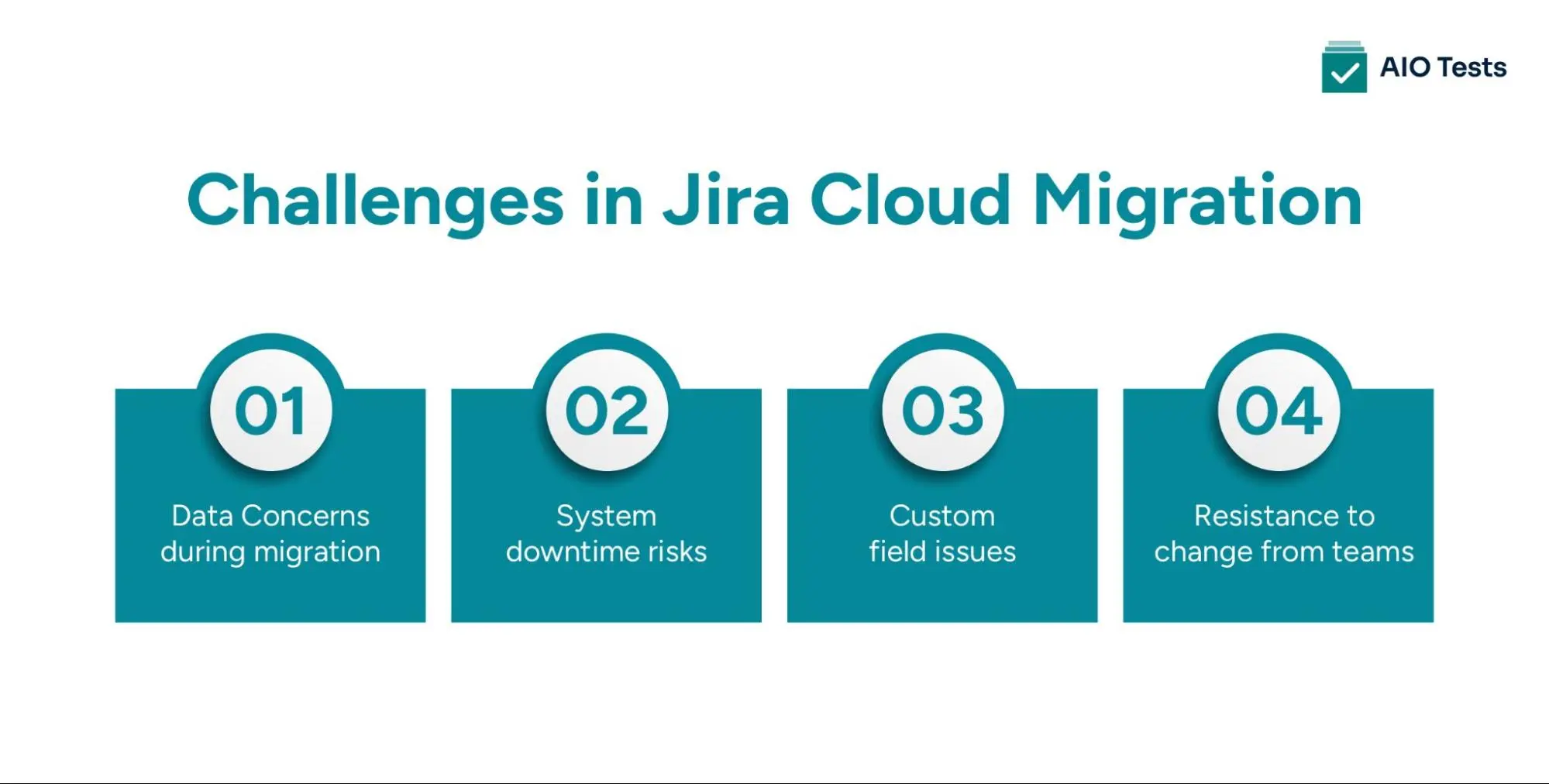
Organizations planning a Jira Cloud to Cloud migration should also review app compatibility, user mapping, and data validation requirements.
Migrating to Jira Cloud can present some challenges that need careful attention. Below, we’ll look at the common issues businesses may face and ways to handle them effectively.
1. Data Issues During Migration
Moving data from Jira Server or Jira Data Center to Jira Cloud can cause problems, especially when it comes to data not fitting correctly in the new system. This can involve missing information, incorrectly mapped data, or fields that don't show up the same way in Jira Cloud.
Solution:
- Check the data before migrating and make sure everything is in order.
- Test the migration with a small amount of data first to make sure it transfers without problems.
- Remove any unnecessary data before starting the process to keep things simple.
2. System Downtime
Organizations planning to migrate Jira Server to Cloud should validate their environment before moving production data. Migrating to Jira Cloud often leads to temporary downtime, meaning teams won’t have access to Jira during the migration process. This could cause delays and interruptions in ongoing projects.
Solution:
- Break the migration into smaller phases, so it’s easier to manage and doesn’t disrupt the entire system at once.
- Migrate when fewer people are using the system, such as over the weekend or during low-traffic hours.
- In case something goes wrong, have a backup plan ready to revert to the previous system.
3. Custom Field Issues
Jira Server/Data Center often uses custom fields and settings that may not work the same way in Jira Cloud. This could result in fields not transferring properly or missing data after the migration.
Solution:
- Go through custom fields and settings before starting the migration to ensure they will transfer correctly.
- After the migration, check that all custom fields are correctly mapped and show the right data.
- Some fields may need to be recreated in Jira Cloud to match the previous setup.
4. Resistance to Change from Teams
Team members may be used to the old Jira interface and workflows and could be reluctant to switch to Jira Cloud. This could lead to a slower transition or mistakes in the early stages.
Solution:
- Ensure team members understand the benefits of Jira Cloud and how to use the new features effectively.
- Set up a helpdesk or support channels where employees can ask questions during the transition period.
Best Practices for a Smooth Jira Cloud Migration
A successful Jira Cloud migration requires more than moving data from one environment to another.
Teams need to prepare their Jira instance, validate configurations, and ensure existing workflows continue working after migration. A structured approach helps reduce risks and avoid disruptions during the transition.
Follow these best practices to make your migration smoother:
- Audit your Jira environment before migration: Review projects, workflows, custom fields, users, permissions, and installed apps. Remove outdated data and identify any configurations that may require adjustments before moving to Jira Cloud.
- Check app compatibility early: Marketplace apps can affect your migration process. Verify whether your essential apps support Jira Cloud and understand how their data will be migrated or replaced.
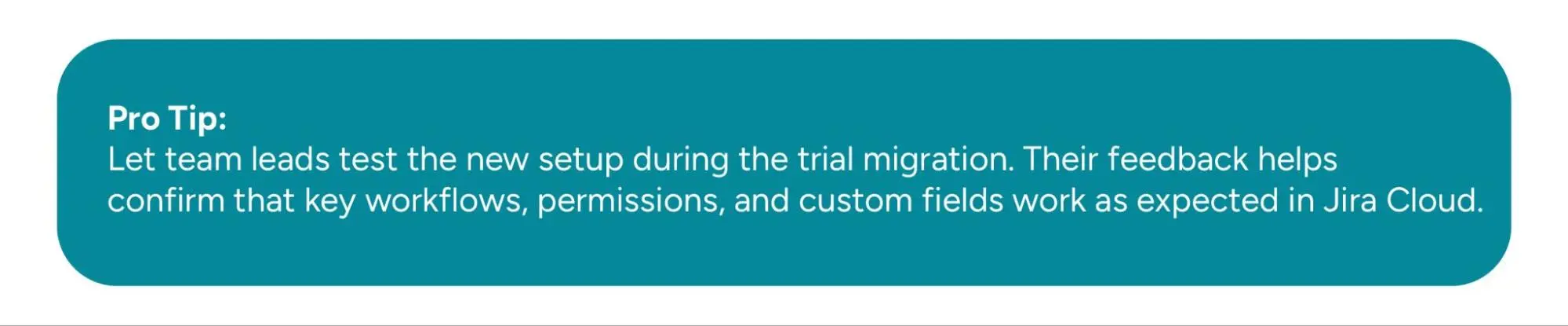
- Run a test migration first: Do not migrate directly to production. Use a test migration to validate data accuracy, check workflows, review integrations, and identify potential issues before the final move.
- Plan for data validation after migration: Verify that issues, attachments, permissions, links, and configurations have migrated correctly. QA teams should also confirm that test cases, executions, and related testing data remain accessible.
- Communicate changes with teams: Inform users about migration timelines, expected downtime, and any workflow changes. Proper communication helps teams adapt quickly after moving to Jira Cloud.
Following these practices helps organizations maintain productivity, protect important data, and complete their Jira Cloud migration with fewer challenges.
How to Migrate Jira Server to the Cloud Using the Jira Cloud Migration Assistant
Moving from Jira Data Center to Jira Cloud is a structured process. Atlassian provides a tool called Jira Cloud Migration Assistant (JCMA) that helps you select what data to move and manage the steps involved.
This guide explains each phase of the migration using that tool.
1. Pre-Migration Preparation
Start with preparation tasks before using the migration assistant.
A. Review Your Setup
- List all projects, issues, workflows, custom fields, and permission schemes.
- Identify unused user accounts and groups, and remove or deactivate them
- Check which apps are in use and confirm which ones support Cloud
- Decide what data you will migrate and who will be responsible for each part
B. Prepare Your Environment
- Remove old or irrelevant data
- Upgrade Jira Data Center to the latest supported version
- Set up your Cloud site with the correct products and apps
- Let your team know the timeline and any expected downtime
2. Install Jira Cloud Migration Assistant
- Go to Administration > Applications in your Jira Data Center instance
- Under Migrate to Cloud, select Jira Cloud Migration Assistant
- If it's not already installed, follow the prompts to add it.
3. Set Up the Migration
- Launch the assistant from the Applications screen
- Click Start a new migration
- Connect to your Jira Cloud site
- Choose what you want to migrate:
- Specific or all projects
- Issues
- Users and groups
- Filters and boards, if needed
- Review migration settings and fix any alerts shown by the assistant
Check how users will be matched with accounts in the cloud
4. Run a Test Migration
Before moving everything, do a trial run.
- Create a test Cloud site
- Migrate a sample set of data using JCMA
- Check that projects, issues, users, and settings were copied correctly
- Confirm that workflows and boards still work as expected
- Fix any problems before doing the actual migration.
5. Migrate to Cloud
When ready, perform the actual migration.
- Let your team know the timing and any impact on access
- Run JCMA again with your full migration settings
- Begin the migration
- Monitor the process from the migration assistant dashboard
- Address any errors or issues that appear
6. After Migration
Once the migration is complete:
- Review the data to make sure everything transferred as expected
- Set up any features that are only available in Cloud
- Reinstall apps if needed and restore their configurations
- Notify users and offer help with using the Cloud interface
- Monitor system usage and performance
- Collect feedback and record anything that should be handled differently next time
Jira Cloud Migration Tools Worth Considering
Choosing the right migration tool can help teams move Jira data safely while reducing manual effort during the transition. The right Jira migration tool depends on your data size, apps, and migration requirements.
Some commonly used Jira Cloud migration tools include:
- Jira Cloud Migration Assistant (JCMA): Atlassian’s official migration tool helps teams move Jira Server or Data Center data to Jira Cloud. It supports migration planning, app assessments, pre-migration checks, and data transfer. Example: “During a Jira migration Server to Cloud, teams should review projects, workflows, users, and apps before starting.”
- Marketplace app migration tools: Many Jira apps provide their own migration support to help transfer app-specific data. Before migration, check whether your essential apps support Jira Cloud and whether their data can be moved successfully.
- Third-party migration services: For complex Jira environments, organizations may use specialized migration partners that assist with planning, data mapping, custom configurations, and post-migration validation.
Before selecting a tool, evaluate your Jira setup, migration requirements, and the data that needs to be preserved. A well-planned migration approach helps teams avoid workflow issues and maintain productivity after moving to Jira Cloud.
Conclusion
Migrating from Jira Data Center to Jira Cloud offers long-term value by reducing system maintenance, improving reliability, and giving teams access to modern features. While the process involves careful planning, the benefits are well worth the effort. Common challenges can be managed with the right test management tools and a structured approach.
To manage risk and maintain continuity, it is important to test your data and workflows during and after migration. There are tools like AIO Tests that can help teams validate the quality of their migrated data, generate test cases, and ensure traceability throughout the migration cycle.
Start your Jira Cloud migration journey with confidence by booking your free demo of AIO Tests today.

FAQs
1. How long does a Jira Cloud migration take?
The time required for a Jira Cloud migration depends on factors such as the amount of data, number of users, project complexity, custom configurations, and app dependencies. Small migrations may take a few hours, while larger enterprise migrations can require detailed planning and multiple test migrations.
2. How do you test and validate data after migrating to Jira Cloud?
After migration, teams should verify projects, issues, attachments, user permissions, workflows, integrations, and app data. Running a test migration before the final move helps identify errors and ensures important data, including QA assets and historical records, is transferred correctly.
3. What happens to your existing apps and integrations during Jira Cloud migration?
Existing apps and integrations should be reviewed before migration to confirm Jira Cloud compatibility. Supported apps may have migration paths available, while unsupported tools may require replacement solutions or additional configuration after moving to Jira Cloud.
4. What common challenges should you plan for during a Jira Cloud migration?
Common challenges include handling custom fields and workflows that may not migrate cleanly, ensuring all third‑party apps are supported in the cloud, managing potential downtime during the cut‑over, and aligning change management so user adoption isn’t disrupted.


.svg)

